

How To Create A Wifi Hotspot On A Chromebook
Do you love Chromebook's excellent web-centric features? If you want a portable internet connection for your Chromebook here's an easy tutorial on how to connect Chromebook to a hotspot.
Google's Chromebook offers a variety of offline tools but if you really want to maximize all the applications and features of your Chromebook from word processing, spreadsheets, flawless web browsing, and cloud-based storage then you need a consistent and reliable source of internet connection.
The most efficient way to stay online wherever you are is through tethering or the Wi-Fi hotspot feature of your smartphone. If you learn how to connect Chromebook to a hotspot then you can conveniently enjoy all the web-based features of your device. What's more tethering or mobile hotspots bring greater mobility and versatility to Chromebook users.
What Are Hotspots
Hotspot or Wi-Fi tethering is a nifty feature of smartphones that allows smartphones to become a portable source of wifi connection. Hotspots make connections and connectivity quite easy for internet devices. At its core, a hotspot is the combination of software, hardware, and back-end network data services that transform a phone into a compact broadband modem or router.
How Does Mobile Hotspots Work?
The truth is there is only a handful of Chromebooks in the market designed with a built-in mobile data connection. Therefore, the smart move is to simply rely on your phone's built-in hotspot to keep your Chromebook connected on the internet. Fortunately, the process is pretty easy, all you need to do is go to settings and turn on your cellphone's Wi-Fi hotspot feature.
Technically speaking, this process occurs when your phone uses its data network as if it were a broadband data source. Afterward, your device transmits this data like a mini Wi-Fi router using the 802.11ac or 802.11ax connectivity. This enables all wifi devices within range to use your smartphone's data signal as if it were a typical wifi network.
How to Turn On Hotspot From Your Android Phone
-
- Ensure you have strong signals and enough data bundles (you can make subscriptions)
- Go to settings of your smartphone and switch 'ON' the enable data key
- On the same page navigate to find 'wireless and network settings'
- Select tethering, and portable hotspot then enable the Portable Wi-Fi hotspot section.
- The hotspot will then create it immediately. However, remember to set your security settings to block unauthorized/ strange connections.
Chrome OS Instant Tethering
One of the newest features of Chromebook and Google devices is Instant Tethering. This allows your phone's hotspot to get internet access directly from your Chromebook. Although, instant tethering is currently limited to a few Android phones and Chromebooks. This feature lets your Android devices, automatically tether to a Chromebook when your smartphone cannot detect a wifi connection.
Steps On How To Connect Chromebook To A Hotspot
Before being able to connect your Chromebook to your smartphone's network. You need to make sure that you have a Chrome OS version 71 and up, and Android 8.1 on your phone, a Google Account, and a Chromebook device that supports instant tethering.
Now here's a step-by-step procedure on how to connect Chromebook to a hotspot.
How to Connect Chromebook To A Hotspot: From Your Chromebook
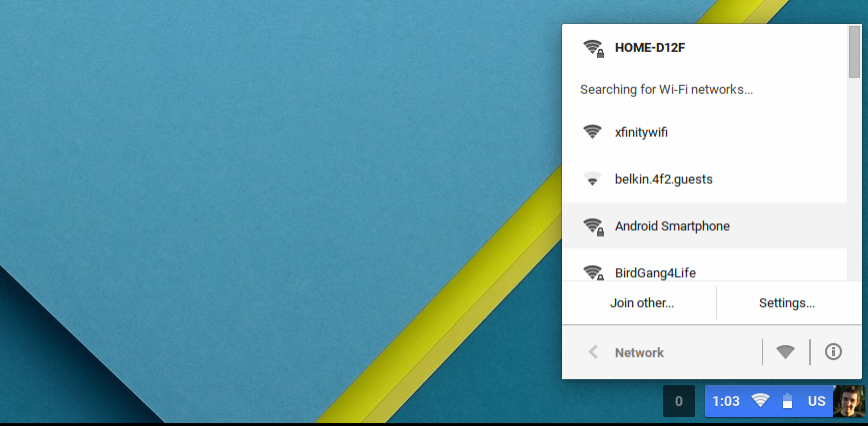
1. At the bottom right corner of your Chromebook select the time.
2. Choose Settings.
3. Now proceed to "Connected Devices" and next to "Android phone" click on "Set up."
4. Then, type your password and follow the steps. When all this is completed, your phone will be notified.
5. Finally, on your Chromebook under "Enabled" select the features that you wish to switch on.
How to Connect Chromebook To A Hotspot: From Your Phone's Data Connection
1. The first step is to turn on your Bluetooth.
2. On your Chromebook, select time which is located at the bottom right of your screen.
3. Select your Wi-Fi network or No network.
5. When you see "Connected" under your phone's name then you have successfully used your phone as a hotspot for your Chromebook.
Limited Availability of Instant Tethering
Instant Tethering is a convenient feature for both Android and Google devices, however, its availability is pretty sparse compared to using a smartphone at your hotspot connection. Apart from that, you should take note that instant tethering only works if your phone and your Chromebook is compatible. To check, go to Setting > Google and look for "Instant Tethering" on your phone. Otherwise, this feature is not for you.
Pros & Cons of Mobile Hotspot
If you don't have the right version of Android phone and Chromebook to take advantage of Chrome OS instant tethering. You shouldn't be too troubled because at the end of the day mobile Wi-Fi hotspot is more accessible. Here are the advantage and disadvantages of using your smartphone as a portable wifi router.
Advantages
Mobility
The best part about using a mobile hotspot is that you can practically use it anywhere as long as you get a decent cell signal. Instead of going through the hassle of looking for a coffee shop, an internet cafe, or a place with free wifi you can conveniently answer important e-mails, messages and go online anytime you want. Mobile Hotspot is practical for students and people on-the-go who constantly need an internet connection to perform their work.
Versatility
Another great feature of a mobile hotspot is all-around flexibility. It's a great alternative to broadband devices. Apart from that, most people bring their mobile devices wherever they go. This means you don't need to bring an extra device just to get an internet connection.
Simultaneity
Mobile hotspots can be connected to multiple wireless-capable devices. This means you can use your tablet, laptop and share your data with friends simultaneously.
Disadvantages
Speed
Although mobile hotspots can be very handy, the truth is they're not as fast as a Wi-Fi connection. This means if your intention is to download large files then it might take a considerable amount of time.
Data Caps
Unlike wifi connection with unlimited internet speed and data, mobile plans are limited. Depending on the type of mobile plan that you have, your connection may slow down or completely stop once you've used up all your data.
Cost
The biggest drawback of using your phone's hotspot as your internet source is the cost. Obviously, if you've already used up all your data your service provider could charge you per hour or per gigabyte.
Conclusion
Knowing how to connect Chromebook to a hotspot is an easy way to get an internet connection through your phone. Although there are newer features like instant tethering that allows Chromebook to provide internet on your Android devices its limited availability makes it impractical for some users.
At the end of the day, if you're goal is to browse the internet, answer e-mails and use Google Docs then mobile hotspots are a pretty decent source of internet connection. However, if you want download speed then Wi-Fi connectivity might be the best source.
If you're a student looking for a reliable Chromebook here are the best Chromebooks for Students.
How To Create A Wifi Hotspot On A Chromebook
Source: https://chromebooki.com/how-to-connect-chromebook-to-a-hotspot/
Posted by: mcdanielcalluser.blogspot.com
0 Response to "How To Create A Wifi Hotspot On A Chromebook"
Post a Comment